WHAT YOU WILL LEARN
- A playlist is a set of rules that tells AutoDJ what to play and when.
- General Rotation is your main sound; "Once per..." playlists handle jingles, IDs and promos.
- Any playlist can be scheduled to a time block or date range.
- Most "nothing is playing" problems come from a disabled playlist, an empty playlist or an inactive schedule.
AutoDJ is what keeps your station on air 24/7, but it needs instructions. Those instructions are playlists.
Getting playlists right is the difference between a station that sounds intentional and one that sounds like a jumbled mess. This lesson explains each playlist type in the Radiocast Panel, how play order works, how to schedule playlists, and how to build a sensible setup for a typical station.
What is a playlist?#
A playlist is a group of songs plus rules. The rules say how often the playlist plays, what order it plays in, and whether it only runs at certain times. AutoDJ looks at all your enabled playlists and decides what to play next based on those rules.
One file can belong to several playlists. A song can be in your main rotation and also in a "Weekend Throwbacks" playlist.
Create a playlist#
- Open your station and go to Playlists.
- Click Add Playlist.
- Give it a clear name, like "Main Rotation" or "Station IDs".
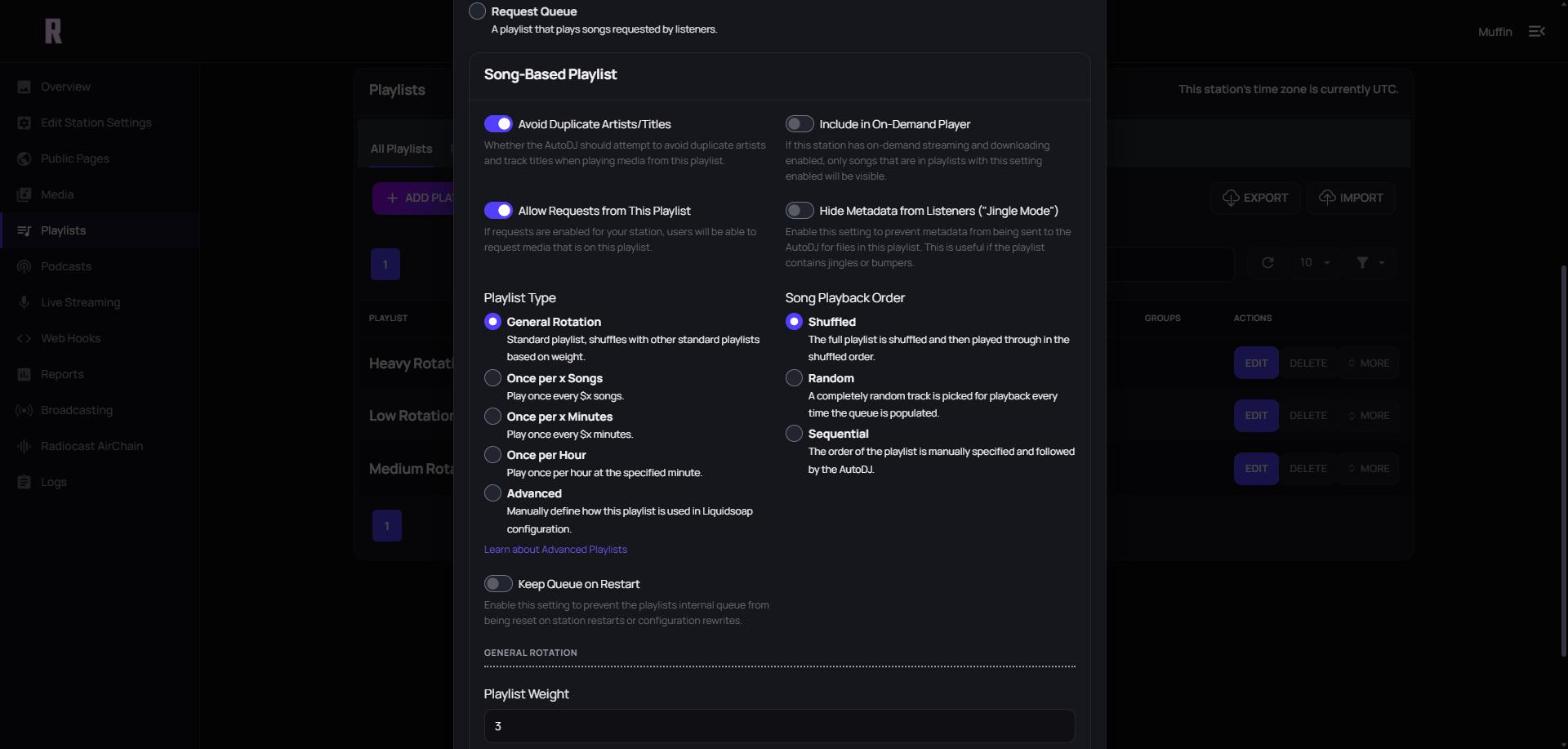
- Choose the source. Almost always this is Song-Based, which plays media files stored on your station. The other options are Playlist Group (a playlist made of other playlists), Remote URL (play from an outside link) and Request Queue (songs requested by listeners).
- Pick a playlist type and a song playback order (explained below).
- Save, then assign files or folders to it from the media manager.
The playlist types#
General Rotation#
This is the standard type, and most stations have at least one. AutoDJ picks songs from General Rotation playlists whenever nothing more specific is due. Think of it as your station's default sound.
If you have several General Rotation playlists, you can give each a Playlist Weight from 1 to 25 (the default is 3). Playlists with larger weights play more often, so a "Current Hits" playlist can come up more than "Deep Cuts" without removing either.
Once per x Songs#
AutoDJ plays one track from this playlist every X songs. It's the right choice for station IDs, jingles and short promos. Set it to every 4 songs and listeners will hear a station ID about four songs apart.
Once per x Minutes#
AutoDJ plays one track from this playlist every X minutes. Use it when you care about time rather than song count, such as a promo every 30 minutes, whatever the song lengths are.
Once per Hour#
AutoDJ plays one track from this playlist each hour, at the minute past the hour you choose (for example :00). This suits a top-of-the-hour ID, a news bumper, or a sponsor read.
Advanced#
This type is for people comfortable with Liquidsoap, the software that powers AutoDJ. AzuraCast still lets you manage the songs in the playlist through the web interface, but it doesn't generate the rules for you. You write them yourself. Most stations never need this, so skip it unless you have a specific idea that the standard types can't do.
Song playback order#
For each playlist you choose a Song Playback Order:
- Shuffled: the playlist is shuffled, and AutoDJ plays through that order before reshuffling. Every song plays once before any repeats. This is the best choice for most music playlists.
- Random: AutoDJ picks a random song each time. A song can come up twice in a short span, because every pick is independent.
- Sequential: AutoDJ plays songs in the order they're arranged. Use it for prerecorded shows, podcast-style programs, or anything that has to run in order.
Useful options#
Depending on the playlist, you'll see a handful of checkboxes worth knowing:
- Avoid Duplicate Artists/Titles helps stop the same artist or song from repeating too soon.
- Allow Requests from This Playlist lets listeners request songs from it, if requests are enabled for your station.
- Include in On-Demand Player makes the playlist's songs available in an on-demand player, if your station has that enabled.
- Hide Metadata from Listeners ("Jingle Mode") keeps song titles off the stream, which is handy for jingles, ads or sponsored breaks that you don't want showing as "now playing".
Schedule a playlist#
Every playlist type can be limited to certain times.
- Click Edit next to the playlist.
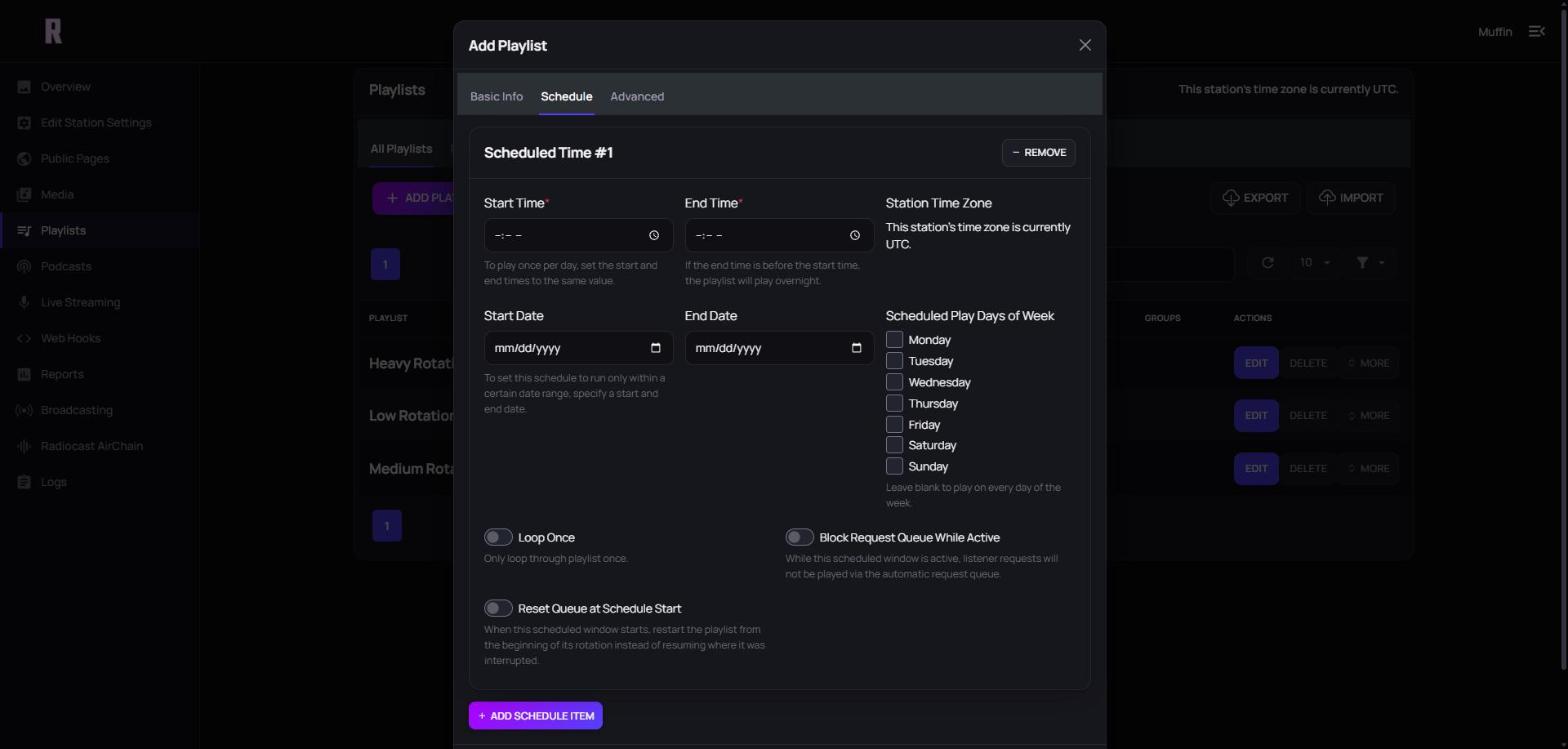
- Open the Schedule tab.
- Click Add Schedule Item.
- Set the Start Time and End Time. If the end time is before the start time, the playlist plays overnight. If they're the same, it plays once per day.
- Optionally choose a Start Date and End Date, and tick the Scheduled Play Days of Week. Leave the days blank to play every day.
- Click Save Changes.
Once a playlist has a schedule, AutoDJ will only play it during those windows. For example, you can run "Morning Energy" from 6 a.m. to 10 a.m. on weekdays and "Late Night Chill" from midnight to 6 a.m. every day.
You can add more than one schedule item to the same playlist, so a weekend special can run Saturday and Sunday afternoons without two copies of the playlist.
Each scheduled time also has a few switches. Loop Once plays through the playlist just once, Block Request Queue While Active stops listener requests from playing during that window, and Reset Queue at Schedule Start restarts the playlist from the beginning when the window opens, instead of resuming where it left off.
The Advanced tab#
Open the Advanced tab in a playlist's settings to find the Advanced Manual AutoDJ Scheduling Options:
- Interrupt other songs to play at scheduled time: stops the current song so the playlist starts exactly on time. Useful for a show that must start at the top of the hour.
- Only play one track at scheduled time: plays a single track when the schedule starts.
- Merge playlist to play as a single track: treats a playlist as one continuous item, useful for a prerecorded mix. The mix name shows as now playing instead of each individual song.
A sample setup you can copy#
Here is a simple structure for a music station with a daily schedule:
- Main Rotation (General Rotation, Shuffled): your core catalog, scheduled for every hour except the evening block.
- New Releases (General Rotation, Shuffled, higher weight): fresh tracks that you want to hear more often.
- Station IDs (Once per X songs, every 5 songs, Hide Metadata from Listeners): short branding clips.
- Top of Hour (Once per hour): a longer ID or news bumper.
- Evening Chill (General Rotation, scheduled 8 p.m. to midnight): a slower mood for the evening.
- Weekend Special (Sequential, scheduled Saturday 2 p.m.): a prerecorded show that plays in order.
Start small. Three or four playlists are plenty for a new station, and you can add more as you learn what your audience likes and weight each playlist based on how well each playlist performs.
Troubleshooting: "My playlist isn't playing"#
Go through this checklist in order:
- Is the playlist enabled? A disabled playlist is ignored.
- Does it have songs? Check that files or folders are actually assigned to it.
- Is its schedule active right now? A playlist scheduled for 8 p.m. won't play at noon.